Getting Started
What is TumelLife? ▸
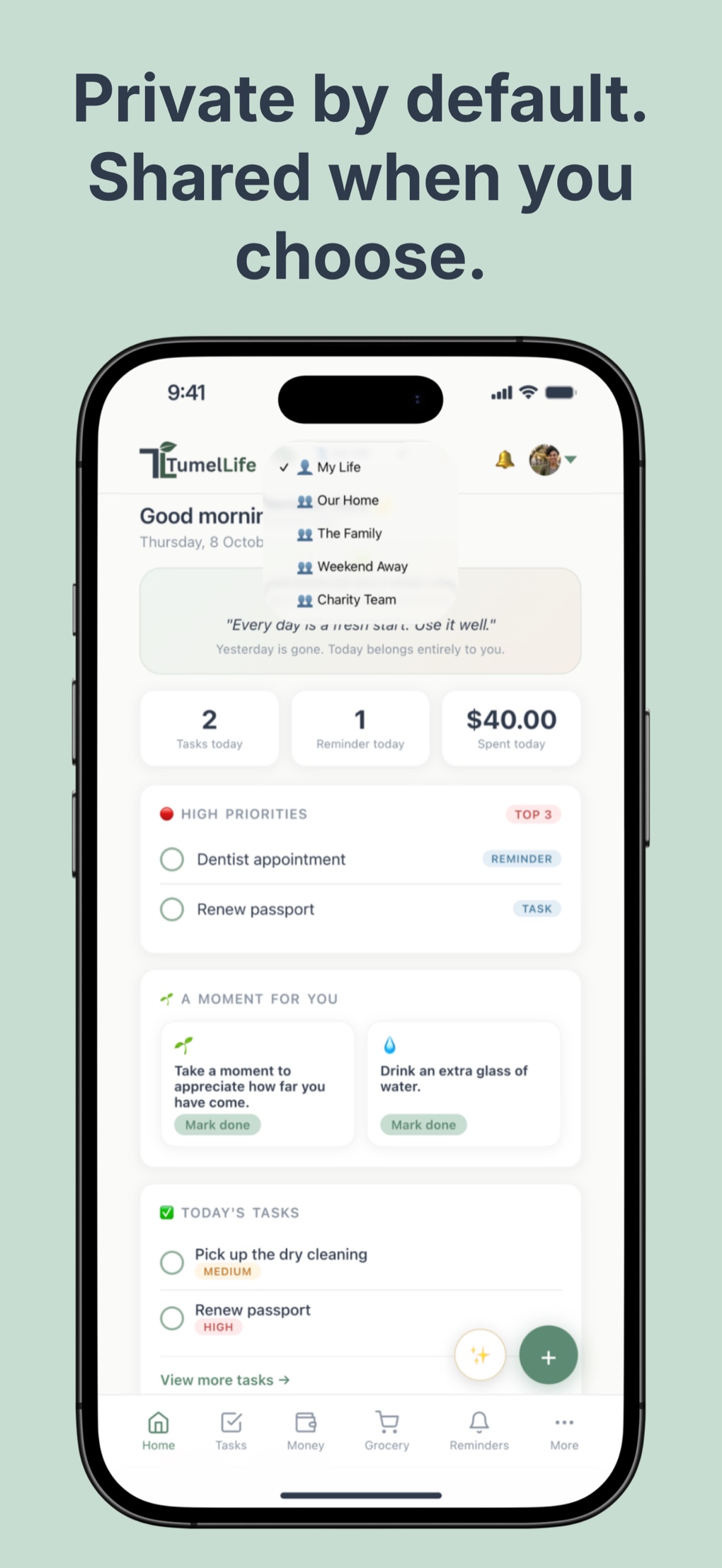
TumelLife is a life management app that brings tasks, reminders, expenses, groceries, notes, meals, cleaning schedules and shared plans into one daily dashboard. Use it privately or share workspaces with the people around you.
Is TumelLife free? ▸
Yes. TumelLife is free, with no ads. If paid features are added in future, the core features will stay free.
How do I create an account? ▸
Go to tumellife.app and tap "Create an account". Enter your name, email and a password, and confirm that you are 16 or older. Your private workspace, My Life, is created automatically.
How old do I need to be? ▸
You need to be 16 or older to use TumelLife. If the law where you live requires a parent's or guardian's permission at your age, you need to have it.
Can I install TumelLife on my phone? ▸
Yes. On iPhone, open tumellife.app in Safari (or Chrome or Edge on iOS 16.4 and later), tap Share, then Add to Home Screen. On iPhone, TumelLife needs to be on your Home Screen to send you notifications. On Android, tap the install prompt or use the browser menu. The iPhone app is also coming to the App Store soon. See Install TumelLife.
Features
What can I do with TumelLife? ▸
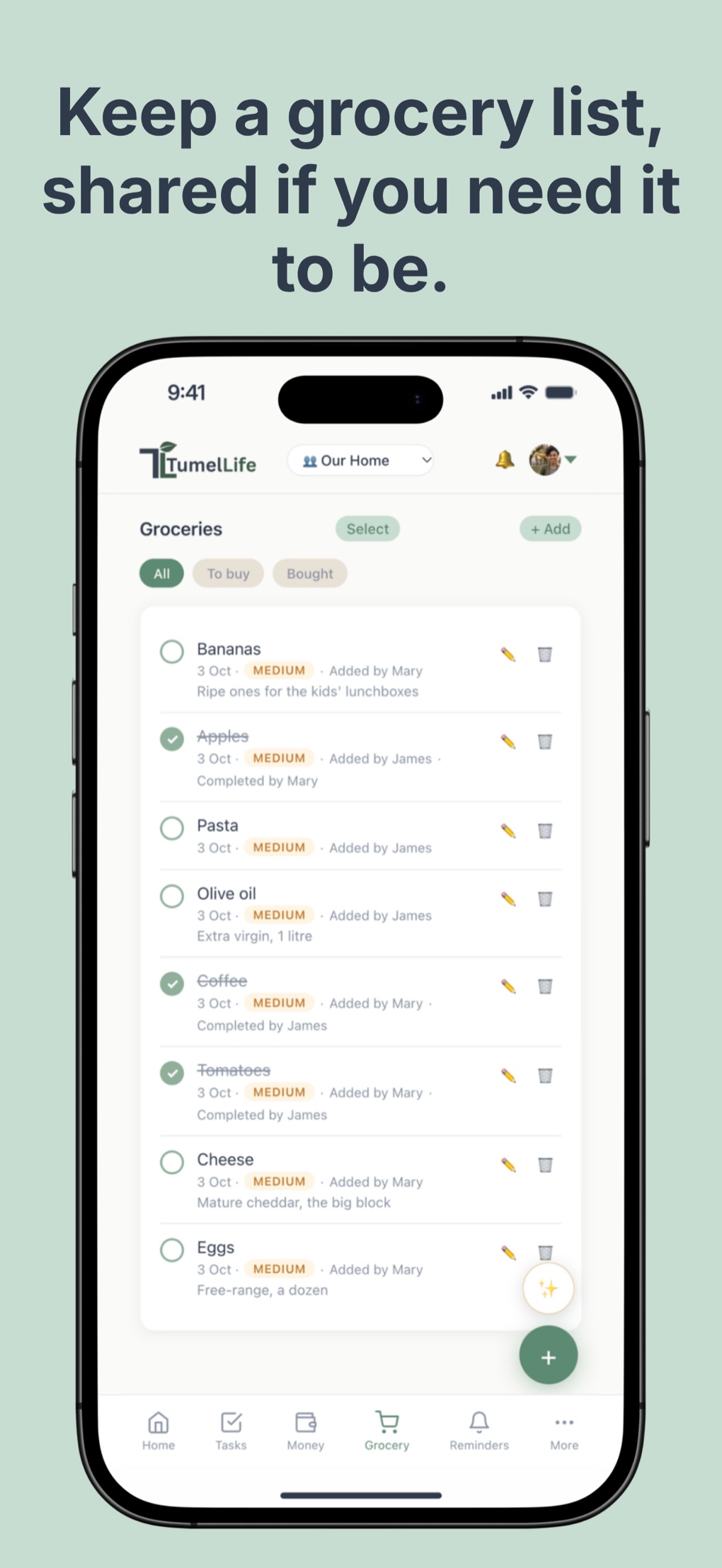
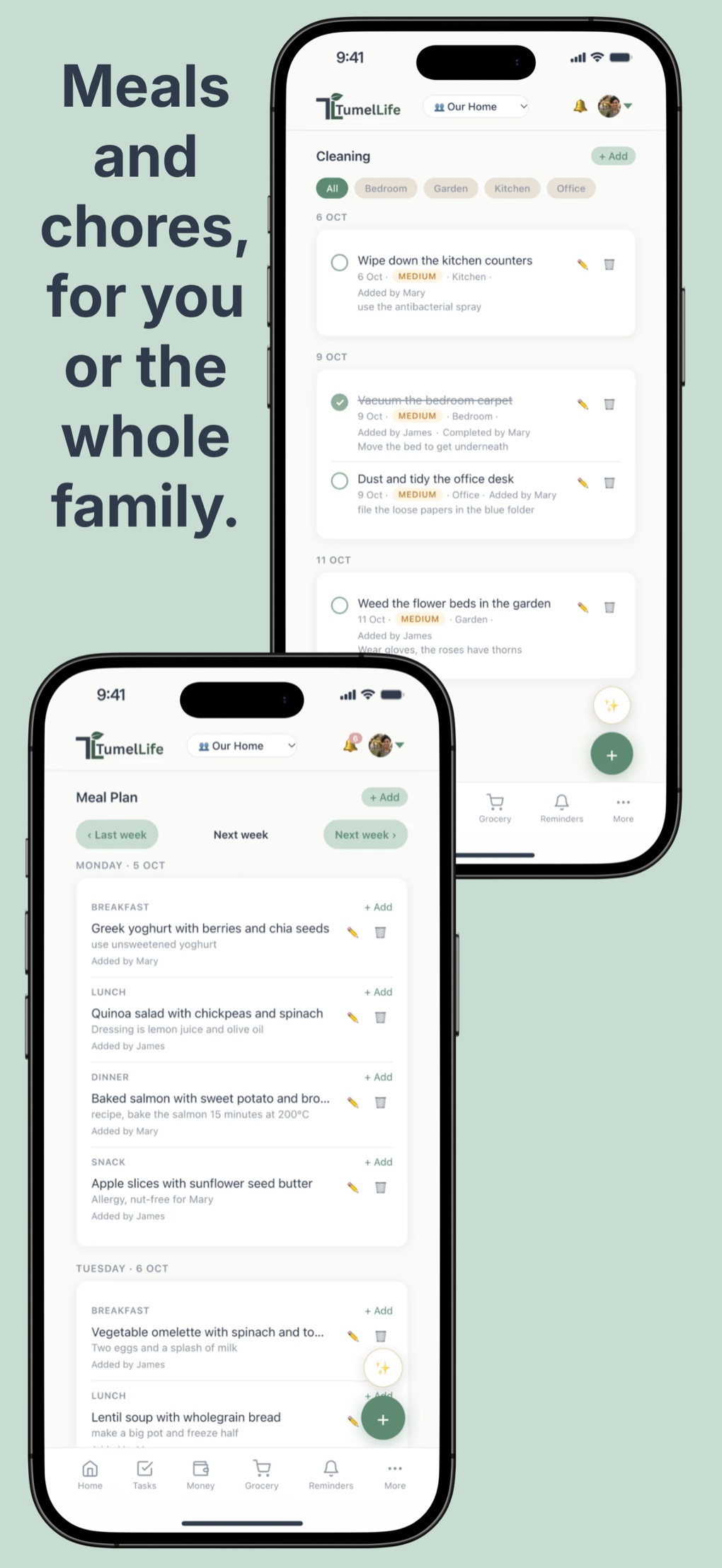
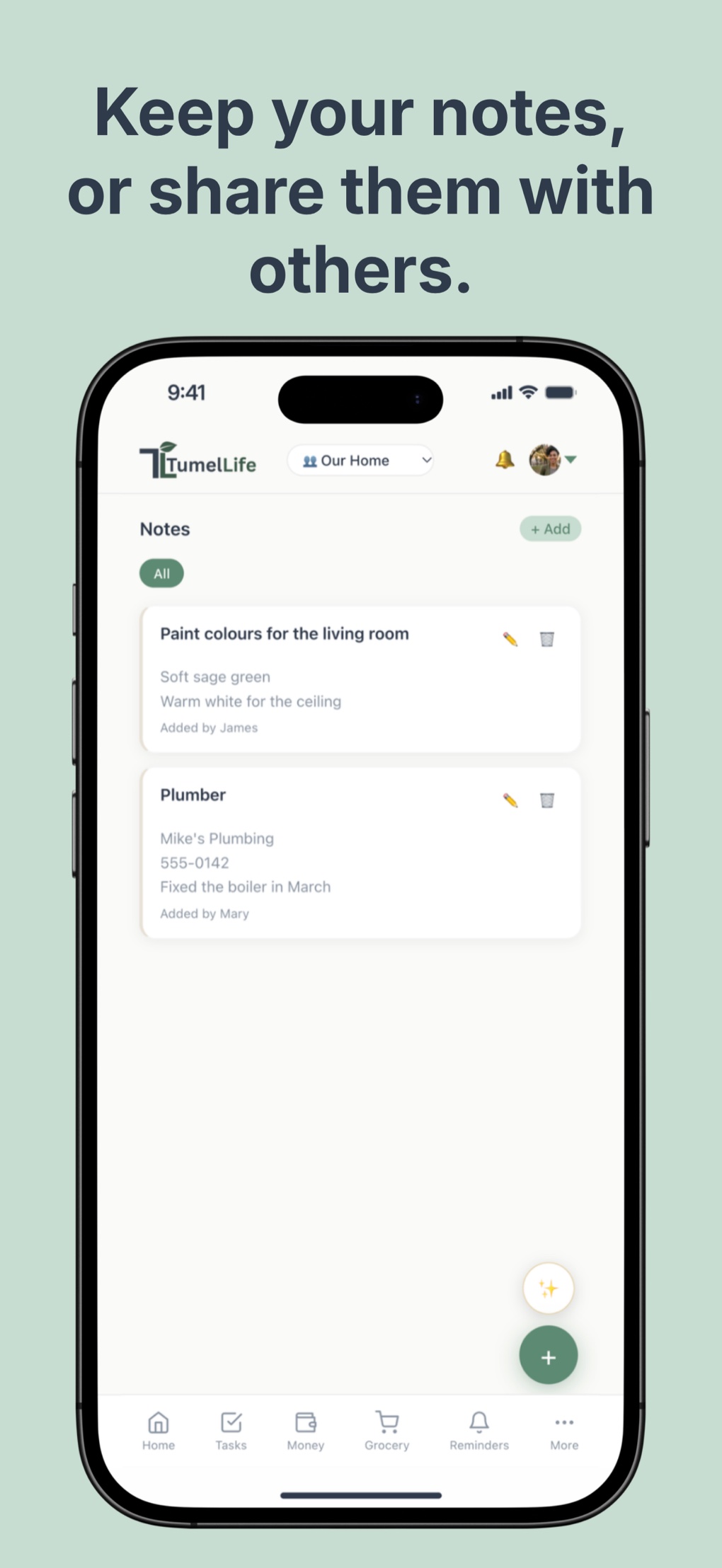
Manage daily tasks, set recurring reminders with push notifications, track expenses in multiple currencies, keep grocery lists, write notes, plan meals, schedule cleaning tasks, and share any of these with your partner, family or team.
What is the AI Assistant? ▸
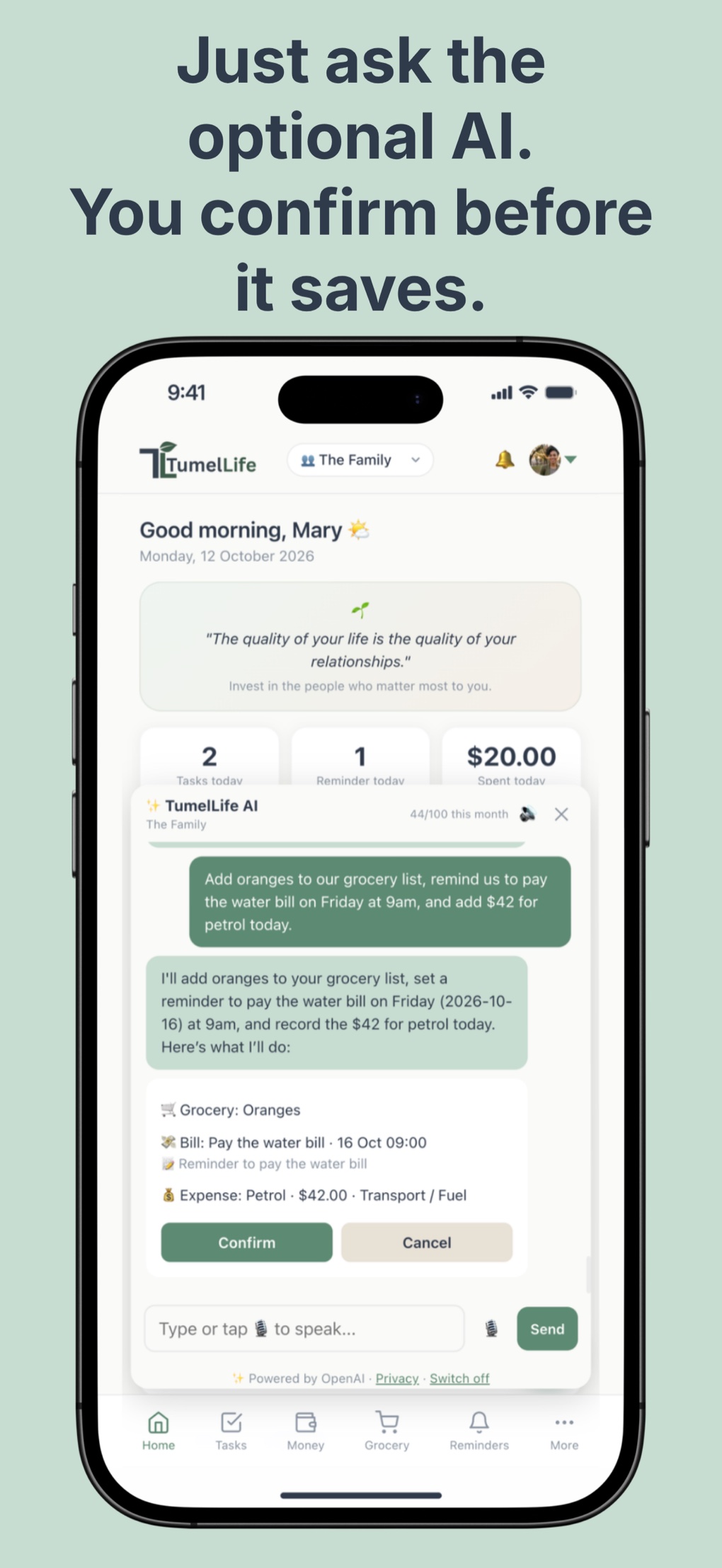
The AI Assistant is optional. Tap the sparkle button and type, or speak where supported, what you need. It can add tasks, groceries, meals, cleaning, notes, reminders, expenses, income and savings, mark things as done, remove items, and answer questions about your spending, income and savings. It asks your permission before it is first used, it is provided by OpenAI, and it always shows each change for you to confirm before anything is saved. It needs an internet connection. See Your AI Assistant.
Can I use voice input? ▸
Yes, on iPhone and in browsers that support it. Tap the microphone in the AI panel and speak your request. It is turned into text and handled just like a typed message. Voice is not available in every browser.
Does the AI see all my data? ▸
No. Only when you send a message, TumelLife sends OpenAI your message, a few recent turns of the conversation and a short summary of the workspace you are in. Nothing from your other workspaces is sent, your chats are private, and you can switch the assistant off at any time. See our Privacy Policy.
Can I track expenses in different currencies? ▸
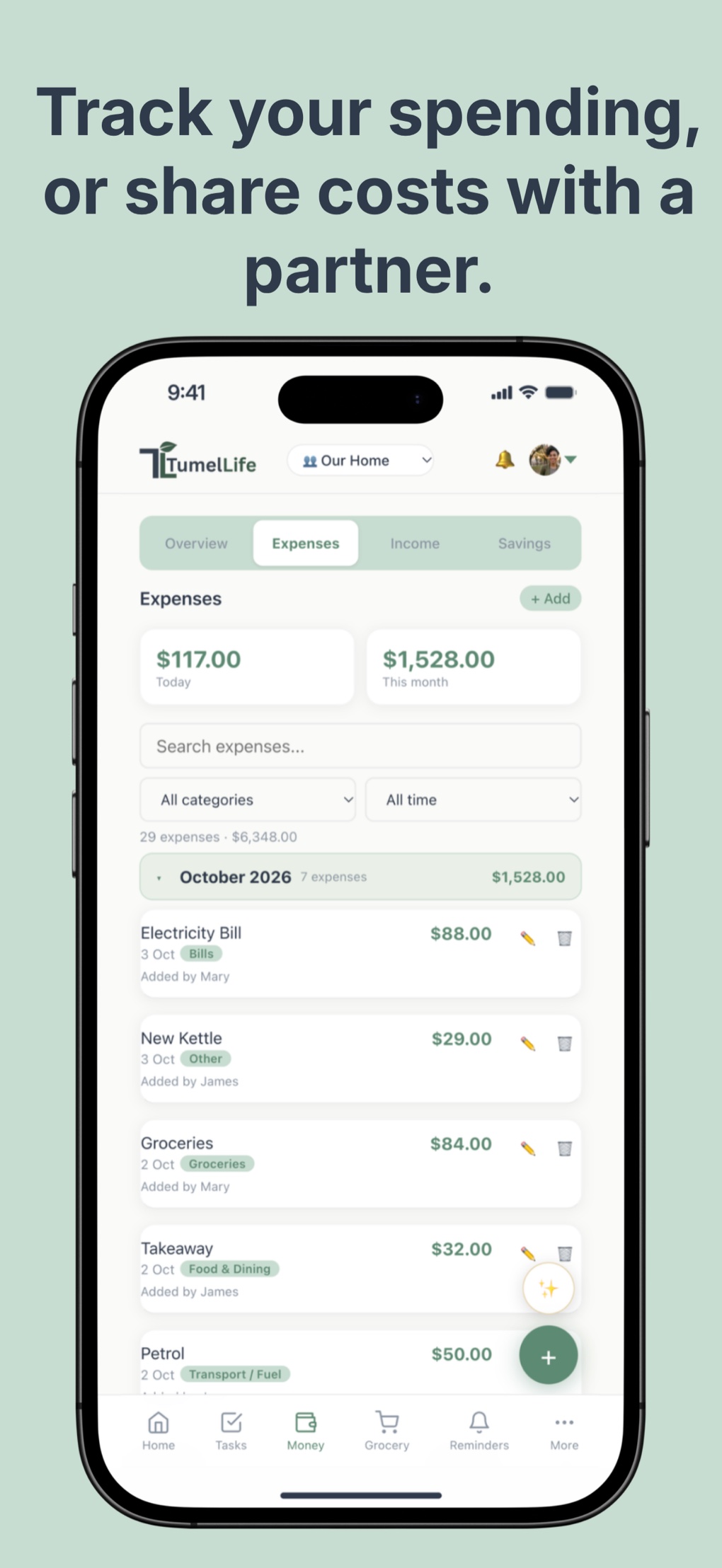
Yes. Each expense keeps its original currency. TumelLife shows each expense in the currency you entered and calculates totals per currency.
What is the Money section? ▸
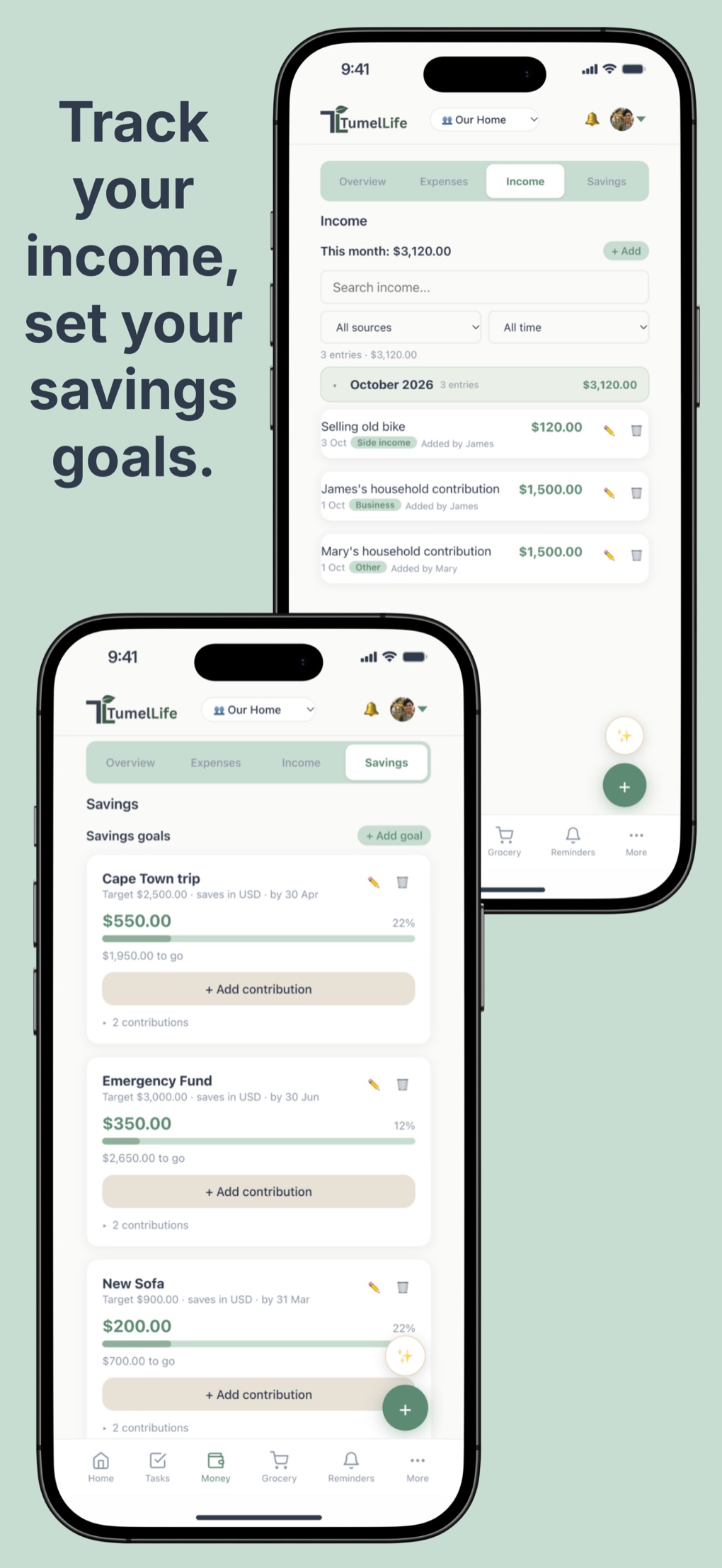
Money brings your everyday finances together in one place, in four parts. Overview shows your income, expenses, what is left over and what you saved, for a period you choose. Expenses lets you record what you spend, sort it by category and look back at previous months. Income records what comes in. Savings holds your savings goals and the contributions you make towards them.
What is the difference between "left over" and "saved"? ▸
Left over is your income minus your expenses and the money you put into savings goals, and it never goes below zero. Saved is money you have deliberately recorded as a contribution to a savings goal. Having money left over does not mean you have saved it, so TumelLife keeps the two separate.
How do savings goals work? ▸
Create a goal with a name, a target amount and a currency, then add contributions as you go. TumelLife shows how much you have saved, your progress and how much is left. Every contribution is kept, so you can look back at what you put away and when. In a shared workspace each contribution shows who added it.
Can I record income that repeats, like a salary? ▸
You can record how often income arrives, such as monthly or weekly, and it is shown on the entry. TumelLife does not yet create future income records automatically, so each payment you actually receive should be recorded when it arrives. This keeps your totals based on real records rather than estimates.
Can reminders repeat? ▸
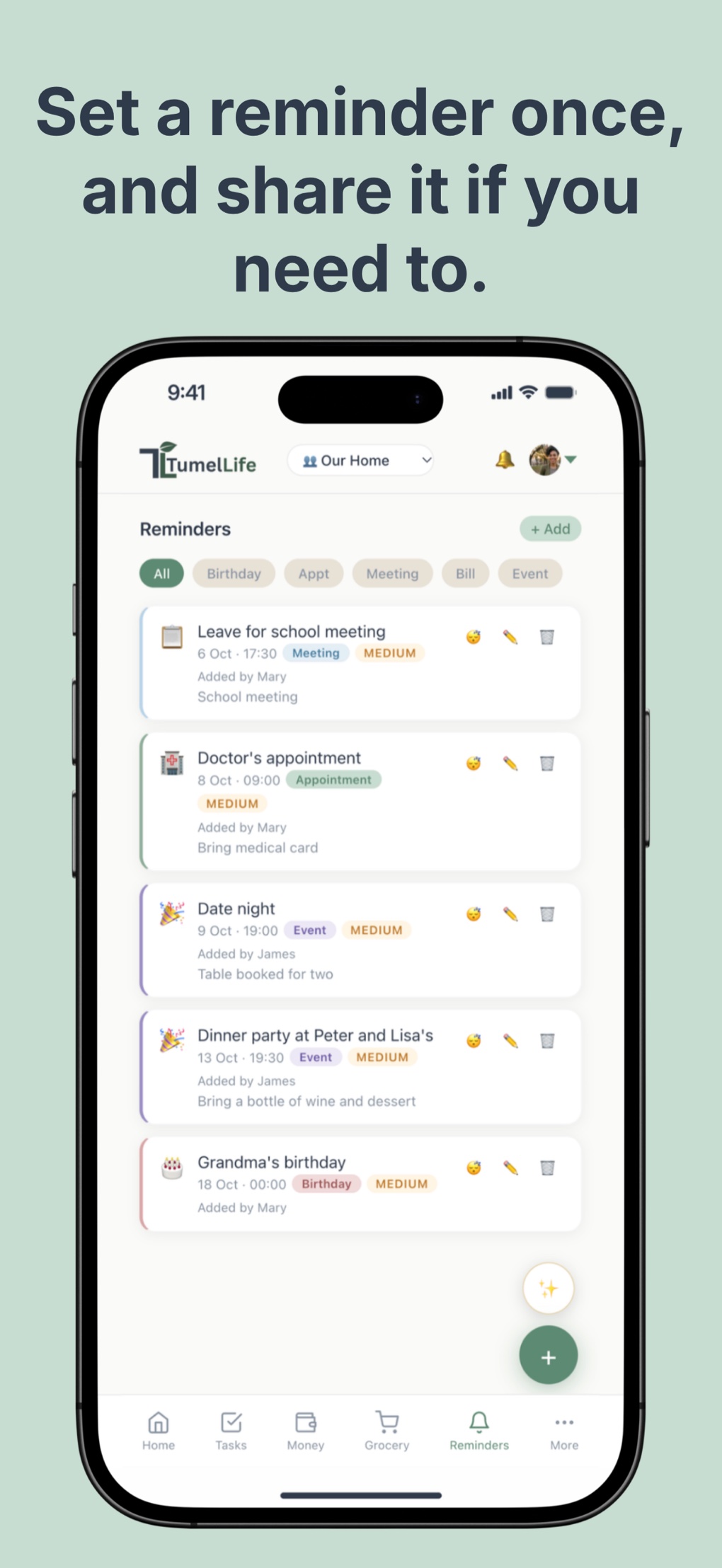
Yes. TumelLife supports daily, weekday, weekly, monthly and yearly recurring reminders. Set it once and it fires on the schedule you choose.
What is the difference between a task and a reminder? ▸
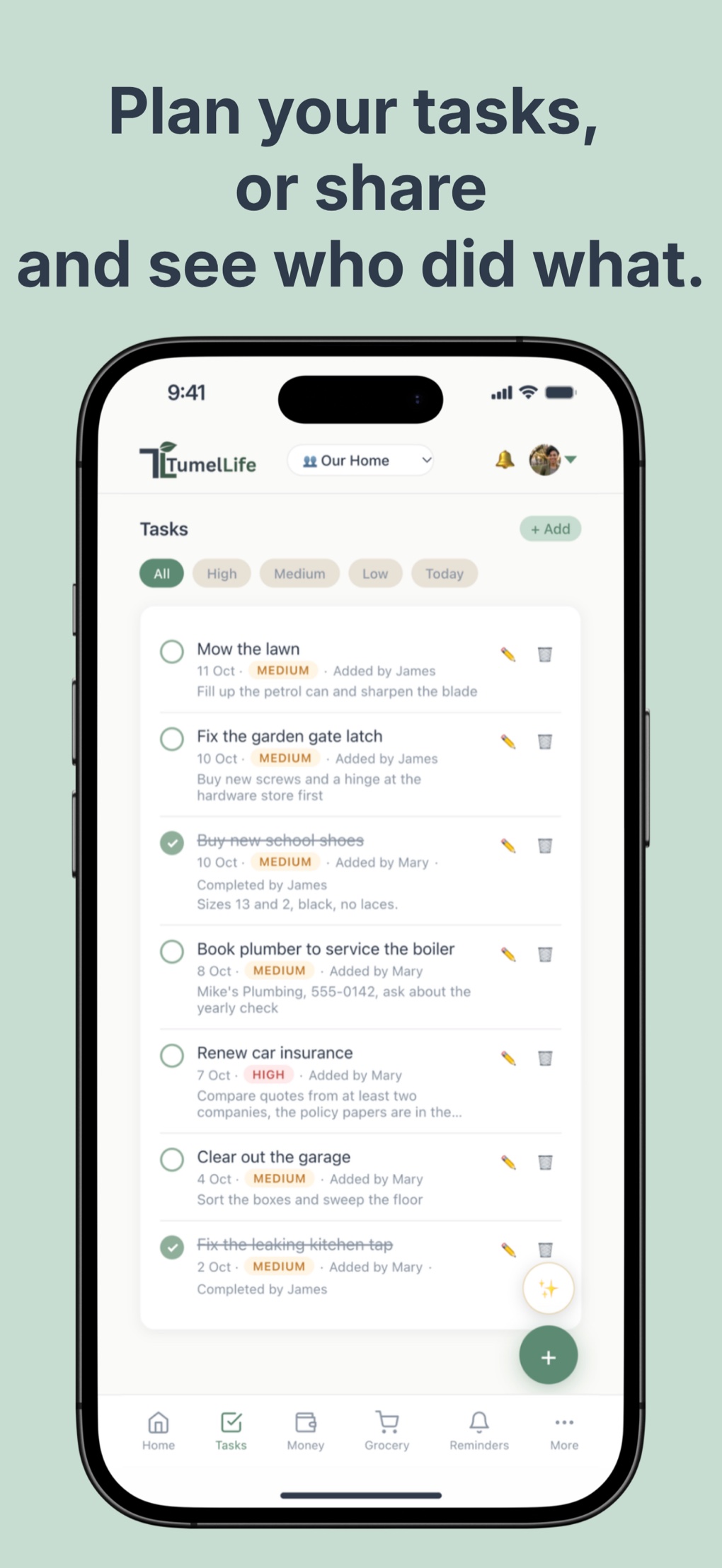
A task is something to do: it has a priority and a due date, and you tick it off when it is done. A reminder is an alert at a set time: it can repeat, warn you in advance, and in a shared workspace you choose who receives it. Reminders send a notification; tasks appear on your dashboard and task list.
Can more than one person receive a reminder? ▸
Yes. In a shared workspace you choose who is notified. Everyone selected receives the reminder on their own device at the same time.
How does a reminder alert me? Does it make a sound? ▸
When a reminder is due, TumelLife sends a push notification with your phone's notification sound, even when the app is closed, and earlier too if you chose a warning. Allow notifications when TumelLife asks. On iPhone in the browser, add TumelLife to your Home Screen first, and you will then find it under Settings, Notifications, TumelLife. If your phone is on silent or in a Focus mode, the alert arrives without sound.
What is the dashboard? ▸
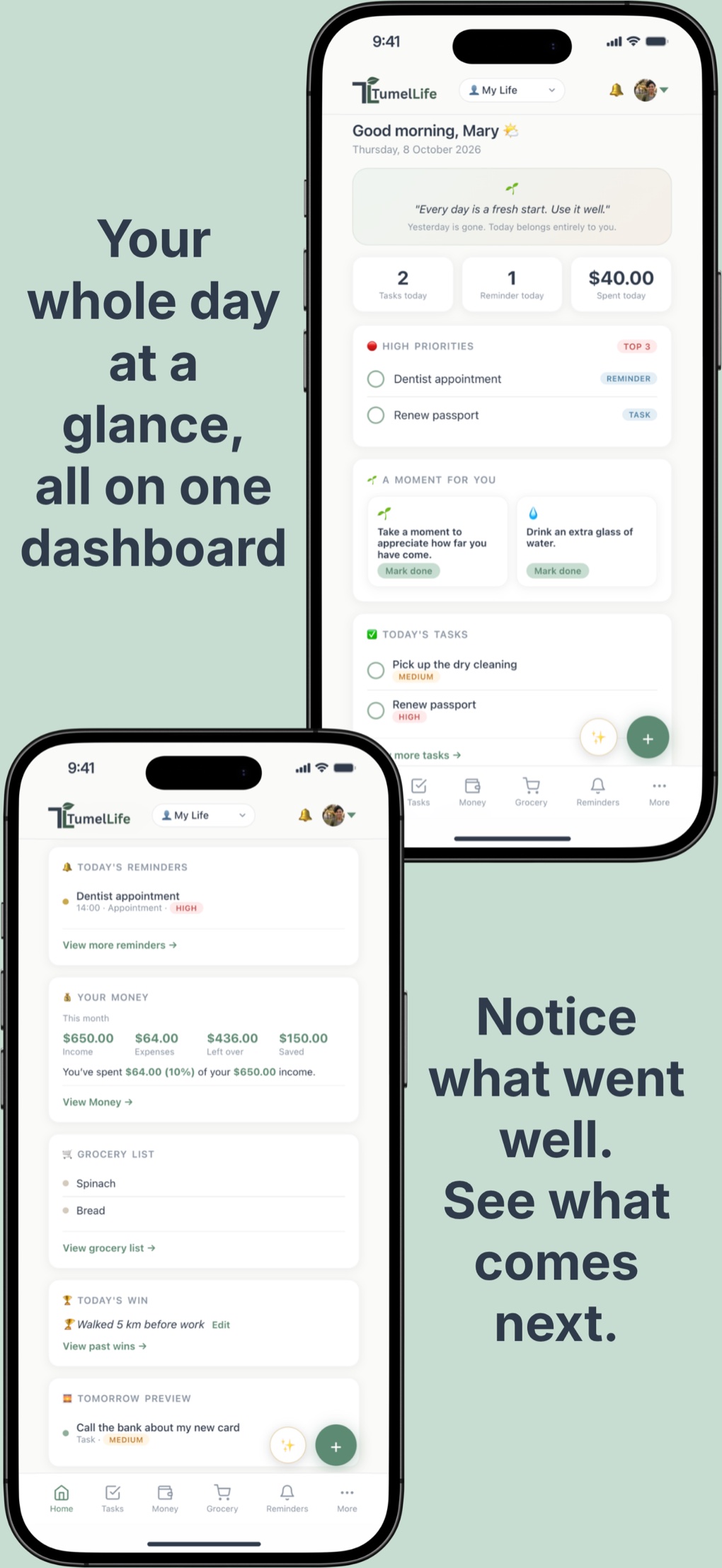
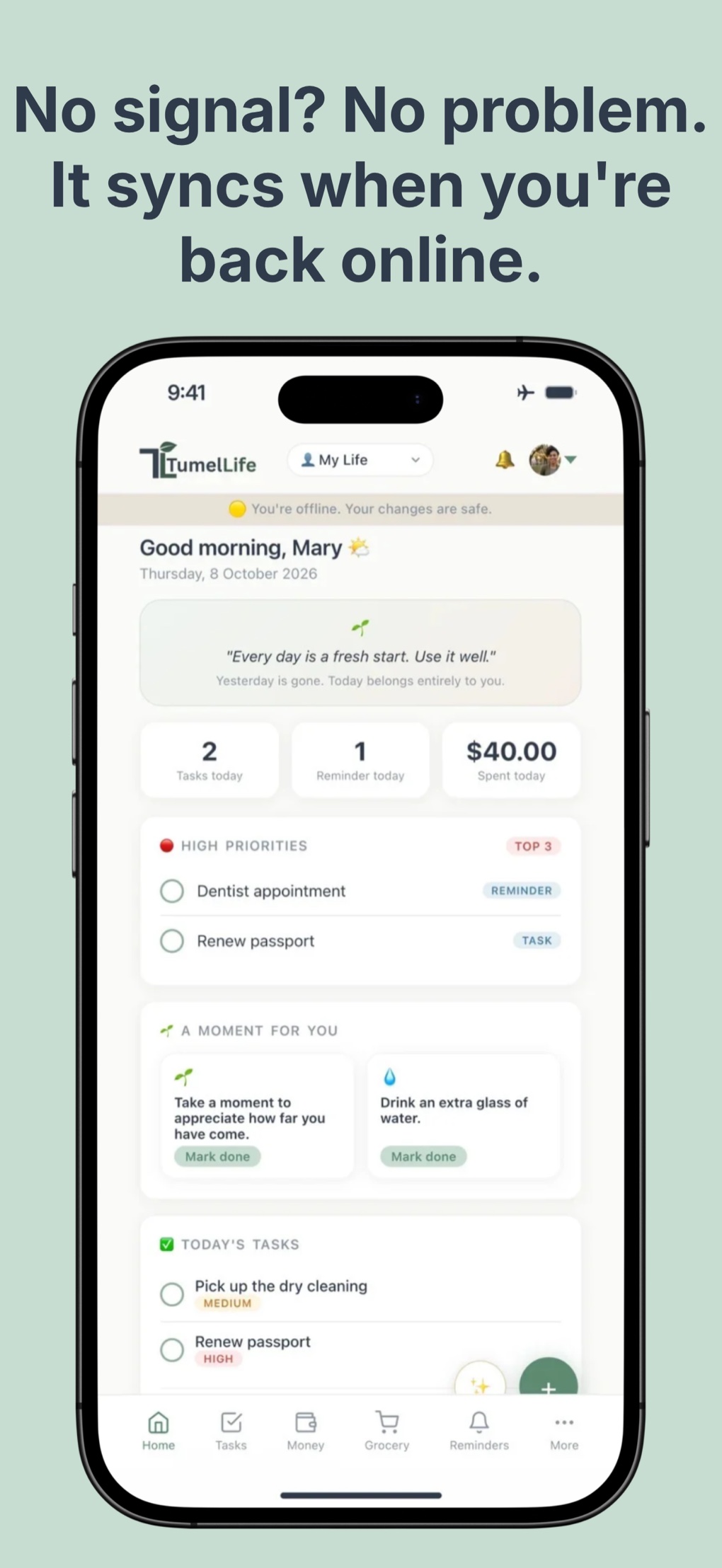
Your dashboard shows everything important for today at a glance: your top priorities, today's tasks, upcoming reminders, spending summary, a moment for you, and a preview of tomorrow.
Workspaces and Sharing
Who is TumelLife for? ▸
Individuals, couples, families, friends, housemates, charities and small teams. Anyone who wants everyday organisation in one place.
How do shared workspaces work? ▸
Create a shared workspace and invite the people you want in it. Everyone sees the same tasks, money, reminders and other items, and each item shows who added it. Everyone can add items and tick them off, and edit or delete the items they added.
How do I invite someone? ▸
Open the shared workspace, open the workspace panel by tapping your profile initial at the top, enter their email address and send the invitation. TumelLife creates an invitation link you can share with them, and people who already use TumelLife also see the invitation in the app. To join, they need to confirm their email address.
What is "My Life"? ▸
"My Life" is your private personal workspace. Only you can see it. It is created automatically when you sign up and cannot be shared or deleted.
Can I see who added an expense or task? ▸
Yes. In shared workspaces, every item shows "Added by [name]" so you always know who created it.
Is my personal data safe in shared workspaces? ▸
Yes. Your personal "My Life" workspace is completely separate. Items in shared workspaces are visible to all members, but your personal workspace is never shared.
Offline and Technical
Does TumelLife work without internet? ▸
Yes. After your first sign-in, you can view your things, add new ones, change them and tick them off without a connection. Everything syncs automatically when your connection returns. The AI Assistant, invitations, notifications and account deletion need a connection.
Is my data secure? ▸
Yes. TumelLife uses Firebase Authentication and Firestore with strict security rules. Your data is encrypted in transit, stored securely, and only accessible to you and the members of your shared workspaces.
Where is my data stored, and who can see it? ▸
Your data is stored in the European Union, in Google Cloud data centres in Belgium and the Netherlands. Your private workspace is visible only to you, and a shared workspace only to its members. Your data is protected by security rules and encrypted in transit and in storage. A few services outside the EU are used only for specific features: the AI Assistant (OpenAI, only when you use it), emails (SendGrid) and notifications (Apple and Google). As with most cloud apps, the data is not end-to-end encrypted. See our Privacy Policy for the details.
How do I reset my password? ▸
On the sign-in screen, enter your email and tap "Forgot password?". You will receive an email from TumelLife with a secure link to set a new password.
How do I delete my account? ▸
Tap your profile initial at the top right, scroll down and tap "Delete my account permanently". Your account and your data are deleted, including everything you added to shared workspaces. If you own a shared workspace with other members, transfer or delete it first. See Delete your account.
How long do I stay signed in? ▸
You stay signed in on a device until you log out, so TumelLife opens straight away. On a shared or public device, log out when you are done: tap your profile initial at the top right and choose Log out.
What happens if I lose my connection? ▸
Your changes are saved locally on your device and sync to the cloud as soon as you are back online. Nothing is lost.